Windows blocked RTXmod?
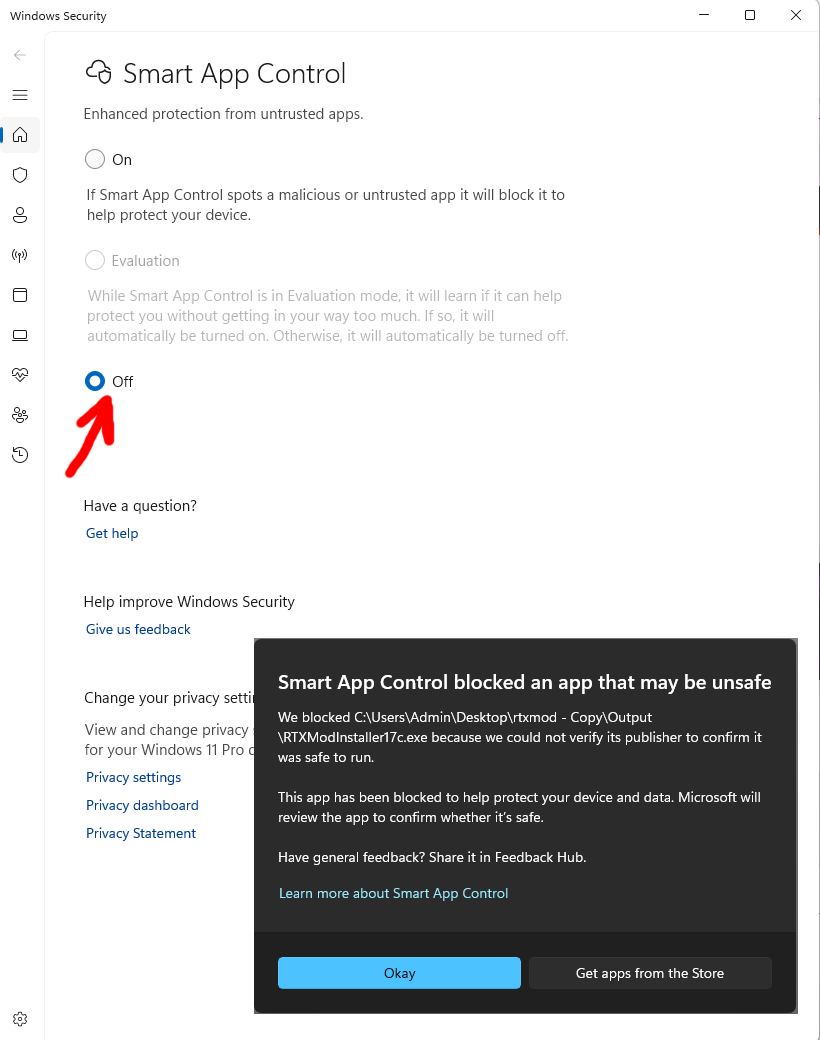
If Windows displays the message Smart App Control blocked an app that may be unsafe, it will not provide a Run anyway button.
To disable Smart App Control:
- Open Windows Security.
- Select App & browser control.
- Open Smart App Control settings.
- Select Off.
- Try launching RTXmod again.
Warning: Windows may not allow Smart App Control to be enabled again without resetting or reinstalling Windows.
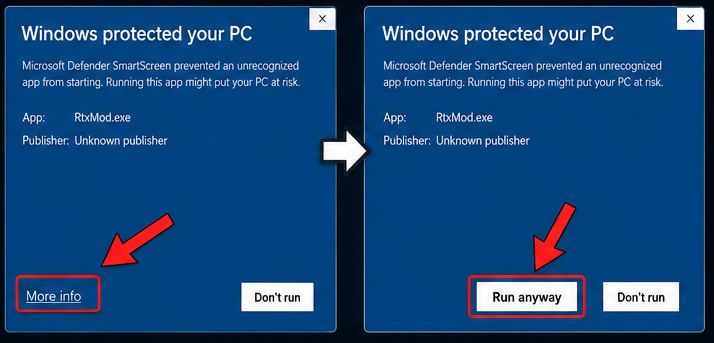
If the blue Windows SmartScreen warning appears, click More info and then click Run anyway.
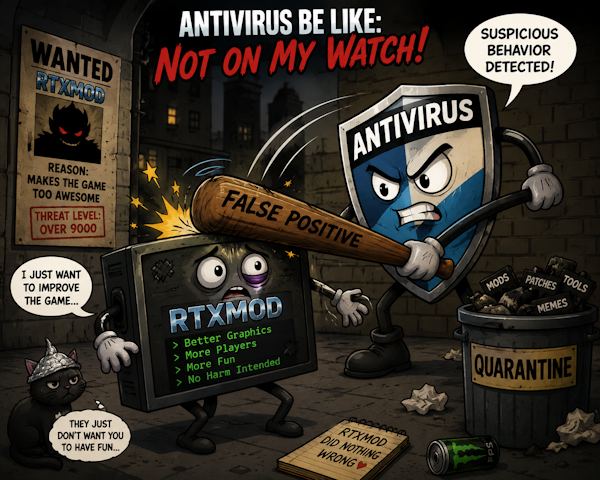
Some antivirus programs may dislike the PowerShell scripts included with RTXmod. These scripts are used by the launcher, updater and additional mod features.
Restore the blocked file from your antivirus quarantine and add the RTXmod folder to the antivirus exclusion list.
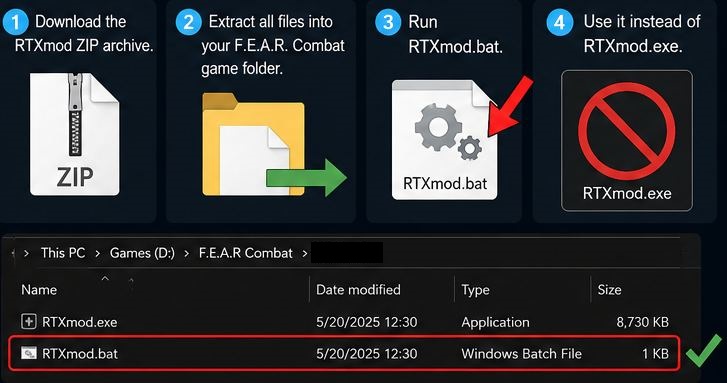
If the installer is blocked or RTXmod.exe does not launch, download the ZIP version.
- Download the RTXmod ZIP archive.
- Extract all files into your F.E.A.R. Combat game folder.
- Run RTXmod.bat.
- Use it instead of RTXmod.exe.